
2.1.5 How to Submit Written Work
How to Submit Written Work
2.1.5
Section 2 — School Curriculum
How to Submit Written Work
Some activities require you to submit a written assignment. All written work is submitted through your Calvary course page. Don't use the Edmentum "dropbox" to turn in your work; your teacher won't see it. Always submit your work on the Calvary course page using the upload file or to paste the link to your shared Google doc. Edmentum is only the textbook. The actual course is on the Calvary page and that is where all work needs to be submitted.
Accepted file formats
All written submissions must be in one of the following formats: .doc, .docx, or .pdf. Files in other formats (such as .odt, .pages, or .txt) will not be accepted.
Recommended word processor: Google Docs
Google Docs is strongly recommended and preferred by most CPA teachers. It is free, requires no download, and allows your teacher to view your work directly from a shared link — which is the fastest and easiest submission method.
Method 1 — Submitting via Google Docs (recommended)
- Complete your assignment in Google Docs
- Click Share in the top-right corner
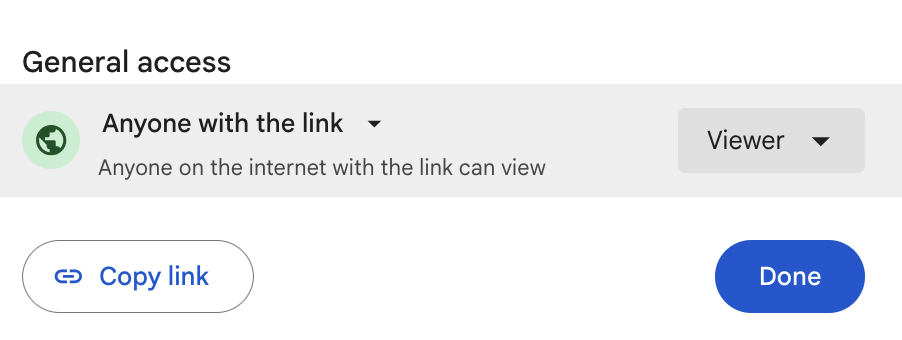
- Under “General access,” change the setting to Anyone with the link (Viewer)
- Click Copy link
- Go to your Calvary course page and find the Upload File activity for that assignment
- Click Add submission
- Paste your Google Docs link into the text box
- Click Save changes
Method 2 — Uploading a Word or PDF file
- Complete your assignment in Microsoft Word or another word processor
- Save the file as .doc, .docx, or .pdf with the ULA number as the filename (e.g., “2.1.5 Practice”)
- Go to your Calvary course page and find the Upload File activity
- Click Add submission
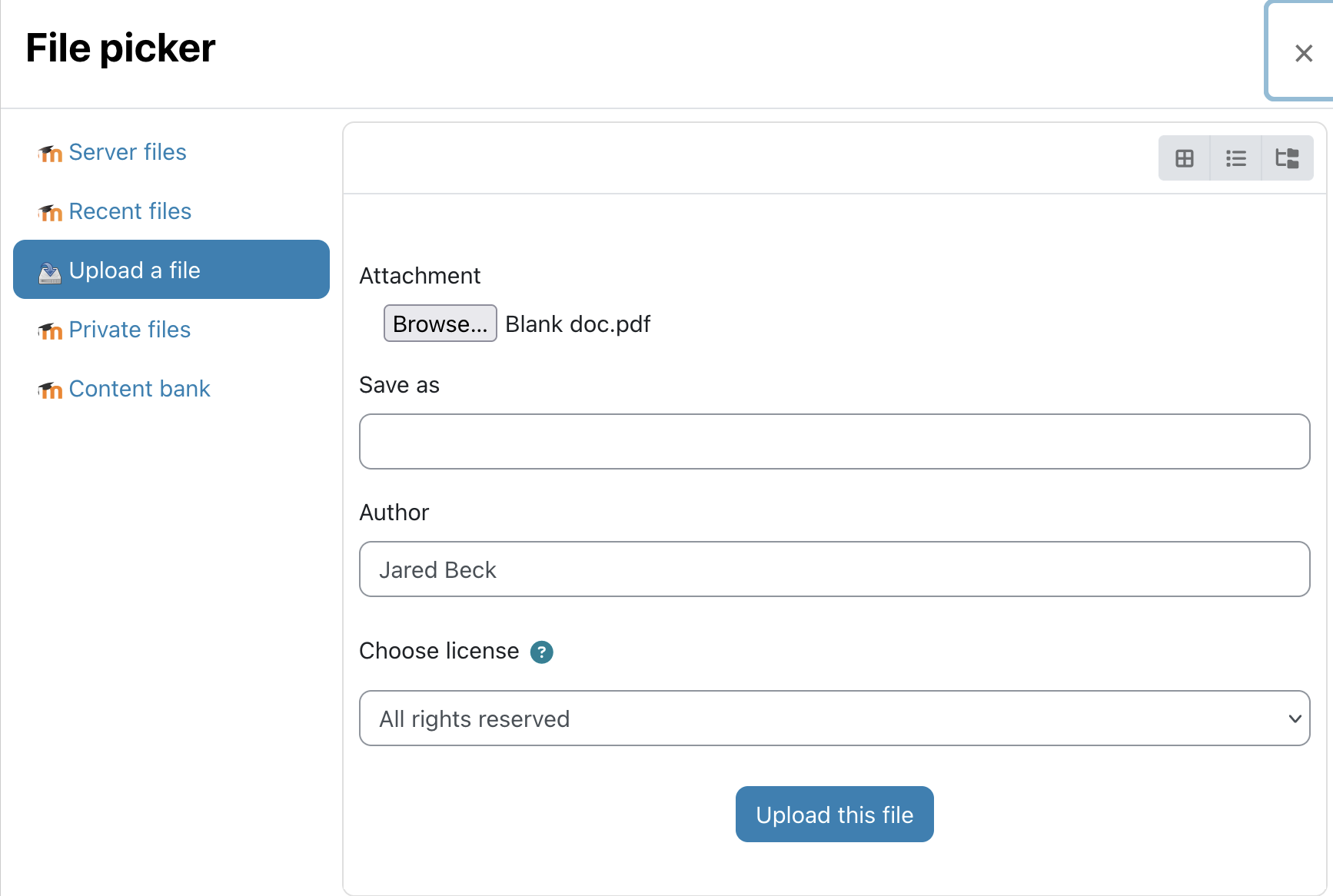
- Drag and drop your file into the file submission area, or click to browse and select it
- Click Upload this file
- Click Save changes
For digital textbook written assignments (Practices, Journals, &/or Teacher-Graded Assignments)
Some assignments in the digital textbook include a PDF with directions. Here is how to complete those:
- Open the activity in the digital textbook — the directions and PDF appear on screen
- Copy the PDF content and paste it into a Google Doc or Word document
- Type your answers in a different color font so they stand out clearly
- Double-space your answers for readability
- Save the file using the ULA number as the filename
- Submit using Method 1 or Method 2 above
Method 3 — Edmentum dropbox activities
This method is not used here at CPA. If you upload to the Edmentum dropbox, your CPA teacher won't see the files. Only use method 1 or method 2 above.Discussion activities
Some digital textbook courses include class discussions. Just like written assignments, these are completed on the Calvary course page, not the Edmentum textbook. On the Calvary course page, read the discussion topic carefully, plan your response in a word processor first, then paste it in and click Submit Response. You can read classmates’ responses and comment on them. Your teacher sees everything posted, reviews your response, and scores it. Be respectful, stay on topic, and follow the netiquette expectations from the Email Etiquette lesson (3.1.5).
Due at your appointment time
All work is due at your scheduled meeting time — not when you feel ready to submit it. Late work is penalized according to the school late policy.
Practice activity
Before your first real submission, complete the practice upload. Open your word processor, type your last name and today’s date, save the file as “2.1.5 Practice,” and upload it using the Upload File Practice link on your orientation course page. This confirms that your submission workflow is working correctly before it matters.