
2.1.1 Access to Curriculum
Access to Curriculum
2.1.1
Section 2 — School Curriculum
Access to Curriculum
CPA uses two connected systems for your coursework: the Calvary course page (Moodle) and the digital textbook (Edmentum Courseware). This page shows you how they work together — and exactly how to log in to each one.
Two systems, one experience
System 1 — Command center
Calvary course page (Moodle)
CalvaryOnlineSchool.org. This is your course home base where you find your assignment checklist, links to the digital textbook, upload activities for written work, and the DDF. You log in here every school day — this page tells you what to do and in what order.
System 2 — Course content
Digital textbook (Edmentum Courseware)
Where your lessons, quizzes, tests, and activities actually live. You reach it through links on your Calvary course page, and you use the same username and password for both systems.
Important: follow the Calvary page
You only complete activities that are assigned on your Calvary course page — not everything available in the digital textbook. Your Calvary page tells you exactly what to do and in what order.
How to log in to the digital textbook
- Log in to your Calvary course page at CalvaryOnlineSchool.org
- Open your course and you will see each activity in the list has a hyperlink.
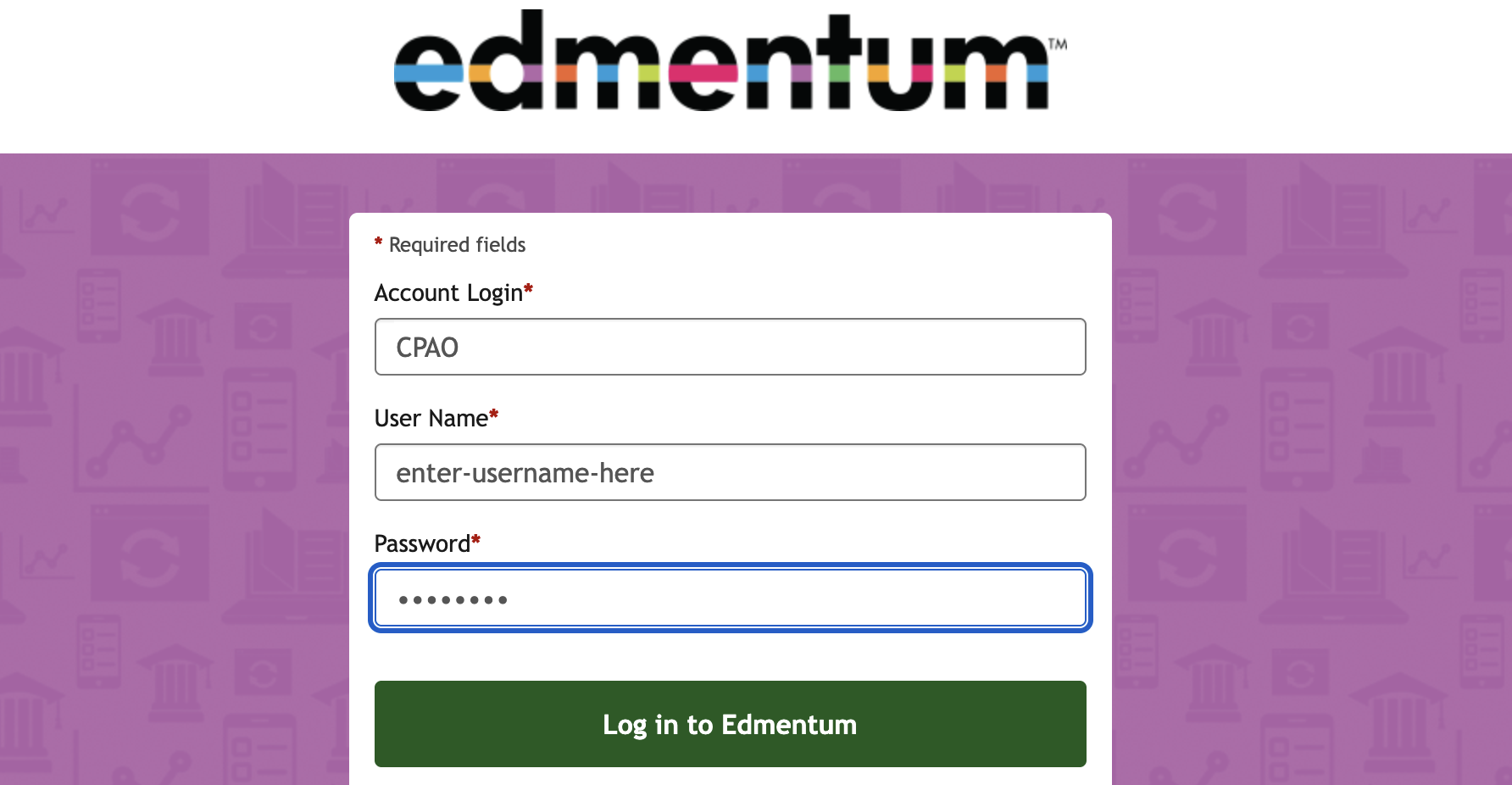
- Click the link. If you are asked to sign in, enter the same username and password you use for Calvary. NOTE: in the first field "Account Log-in' enter CPAO - as in Calvary Preparatory Academy Online.
- Backup route: if the Calvary link is ever unavailable, go directly to login.edmentum.com and sign in with the same credentials
- Forgot your password? Use the reset link on the login screen, or contact your teacher
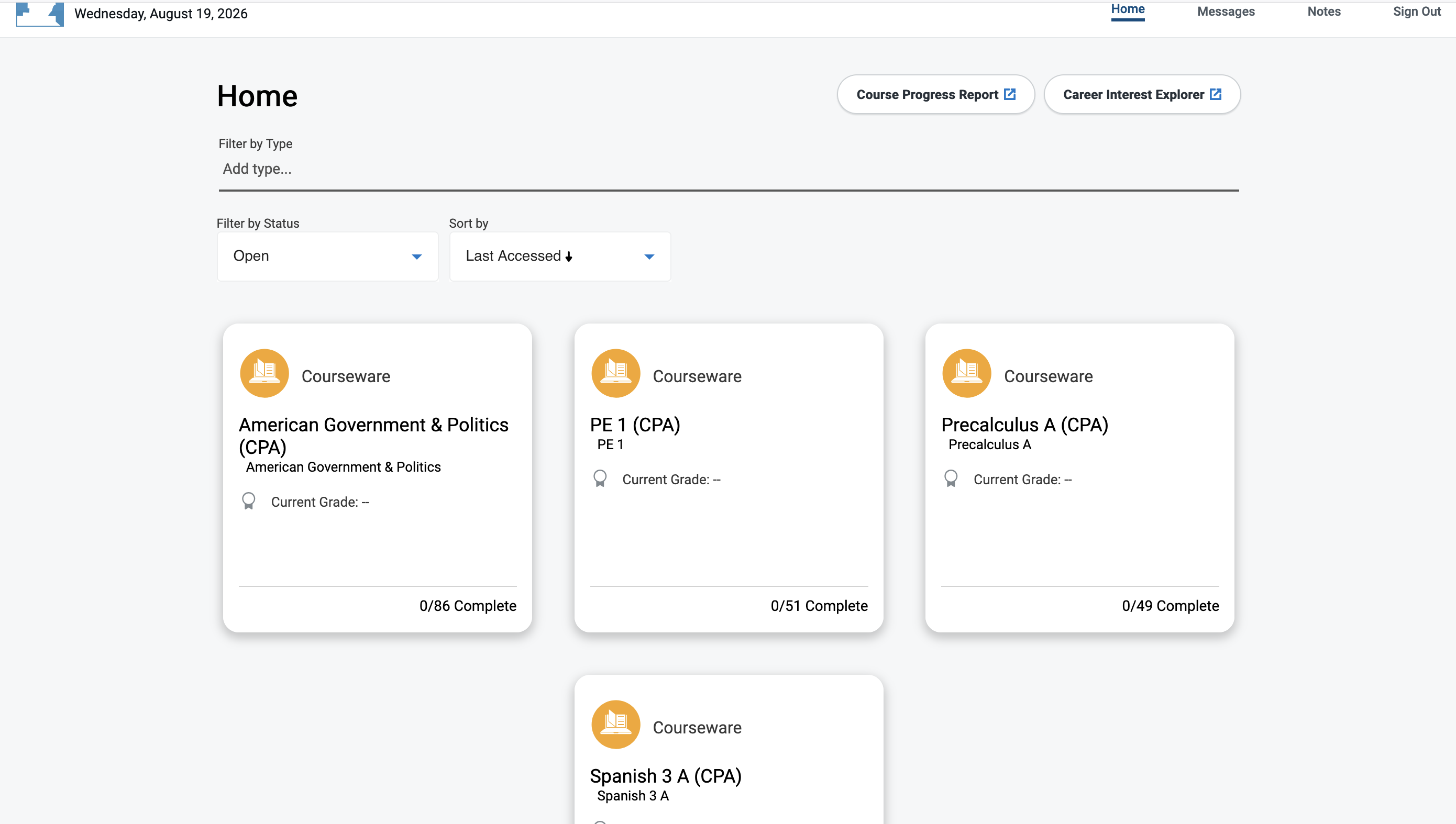
Your Edmentum homepage
When you sign in, every course you are enrolled in appears as a card on your homepage. Click a card to open that course. The Edmentum homepage has a lot of extra features that we don't use at Calvary. The messages button at the top right can be ignored. At CPA we use email to contact each other, not the Edmentum messages. Your courses will display a grade, but that is only your textbook. Your actual grade for the course involves more than just the textbook grade. You will learn more about your total course grade in this orientation.
Understanding the ULA system
Every activity in your course has a ULA number. ULA stands for Unit, Lesson, Activity.
| Digit | What it means | Example: 3.1.2 |
|---|---|---|
| First digit | Unit number | Unit 3 |
| Second digit | Lesson number within the unit | Lesson 1 |
| Third digit | Activity number within the lesson | Activity 2 |
So 3.1.2 means Unit 3, Lesson 1, Activity 2. When your teacher says “complete 3.1.2,” you know exactly where to find it — in both Calvary and the digital textbook.
Your course page structure
Each course page on Calvary has 18 sections. Each section contains:
- A ULA checklist of activities to complete
- Links to digital textbook lessons and graded activities
- Upload activities for any written assignments
- Custom assignments added by your teacher
- “Mark as done” checkboxes — these are personal tracking tools only, not official completion records
Check for understanding
Quick check: In the ULA number 3.1.2, which digit refers to the activity? And which website do you visit if the Calvary textbook link is unavailable?
Answer:
The third digit — the number 2 — is the activity. And your backup login site is login.edmentum.com, using the same username and password as Calvary.